
The Only Two Linux Distros You Will Ever Need
2026-03-11

With the release of the 2026 edition of the LTT Linux Challenge, comes the usual fuss about which distro they should or shouldn’t have chosen, I decided to throw my hat into the ring and give you my final and definitive recommendation on what Linux distro you should use in 2026.
Let me tell you a little about myself first, in case you’re new here: I’m a software engineer and I’ve been using Linux as my primary operating system since 2009. That’s 17 years ago at the time of writing this, back when Steam on Linux didn’t exist, not to mention Proton. The opinions expressed in this article are the result of my experience, of trial and error and hands-on experience on what works and what doesn’t.
My recommendation
Alright, onto the fun part. It really boils down to these two:
- Universal Blue based distros (Aurora, Bazzite and Bluefin)
- Arch Linux and its direct derivatives (more on this later)
That’s it. These are the only two options that make sense for most people.
“But what about…”
There is one caveat: if you’re using a more advanced distro like NixOS or Gentoo, or a special-purpose distro such as one for pen-testing or one for supporting a specific set of hardware, then you already know what you need from your system, and your choice is likely dictated by experience and deliberate reasoning, and this article is not for you. If you’re happy with your choice, you don’t need to change it.
Before moving on to why I chose these two families of distros in particular, I want to explain why I don’t recommend distros like Ubuntu, Linux Mint, Debian, Pop!_OS or Fedora.
Versioned releases and broken upgrades
One of the most overlooked aspects of running Linux for a long time is dealing with updates, and in particular how updates work in what I like to call the legacy versioned release model.
Excluding immutable, image based distros, once installed an operating system is a state machine that moves from state to state with every action the user takes, such as installing and uninstalling applications, changing configuration files and adding third party repositories. By nature of the immeasurable amount of things you can do to an operating system, it’s impossible to know and account for all the possible combinations of states that could exist out there.
This becomes potentially catastrophic during a version upgrade: by making the big changes required for a full system upgrade, including kernel, drivers, libraries and applications all at once, you are inevitably asking for trouble.
When the operating system cannot control its own state, big changes like these should be avoided, in favor of gradual ones, introduced bit by bit as they come.
It’s quite hard to nail down exactly all the things that can go wrong during a version upgrade, and if it wasn’t, there wouldn’t be a problem. Let’s just describe a few:
- Any third party repository you might have added (ie: PPAs for Ubuntu, Copr repos and RPM Fusion for Fedora) might not work on the new version
- A fundamental structural change in the new version (ie: what filesystem or bootloader to use) requires making assumptions on the state of the system that are often not correct
- A new version of the kernel or a low-level system package might introduce a regression that makes some of your hardware inoperable
- User-created system configurations might get overwritten
This is a huge problem, because when doing a version upgrade you’re essentially rolling the dice on whether or not it is going to succeed, or fail and leave you with a broken system and a weekend of troubleshooting ahead of you.
And trust me, I’ve seen it happen countless times, to my systems and to other people’s. It’s not fun and it’s not something that can be allowed to happen.
This is the main reason why I cannot recommend distributions that follow a versioned release model, because even if they work great, sooner or later they’re going to break and you’re going to be mad about it.
Option 1: Universal Blue – aka Aurora, Bazzite and Bluefin

Universal Blue is the easiest Linux distribution for almost everyone. Let me explain why.
You see, this problem with system upgrades, and the operating system getting messier as time goes by, doesn’t exist only on the desktop, but in the server and enterprise world as well.
However here’s the fun part: in the server world we solved it! How? Well, in the silliest and most obvious way possible of course: every time you so much as want to touch the system, you throw the entire thing away and rebuild it completely from scratch!
It makes sense: how many times have you been plagued by absurd errors or bugs on your computer? Those you could only solve by nuking the entire system and reinstalling it from scratch?
This sounds idiotic at best, but it does work, and we’ve found very convenient ways of automating this process. In the server space we have declarative infrastructure and containers, and they’re basically the industry standard at this point.
The clever people of the Universal Blue project have essentially done the same thing: they ship their operating systems as immutable glorified container images, and every time you update your system it’s just reinstalled from scratch, while your home folder and your configurations are kept intact.
It’s not even unheard of in the consumer space: both Android and iOS use a similar approach, where your system partition is locked down and immutable, and OS updates are provided as a full system image that replaces the one you’re currently running. It’s a tried and true method, and while it might admittedly still be novel in the desktop computing space, there’s little reason why it shouldn’t work out just fine.
While this is a good way of doing things, it does come with one caveat by definition: your system is immutable.
This means that you are limited in how you can install software. The Bazzite documentation has a very well put together list that should apply to all distros in the Universal Blue family, but I also want to give you my recommended methods, in order of preference:
- Flatpak (mostly via Flathub)
- Most apps work great, some like Steam and code editors don’t
- More on this in the Installing apps section of this article
- AppImage
- Annoying to update apps
- The ecosystem around the format can be problematic for developers
- In a container via Distrobox
- Really cool and extremely versatile, but not very easy for a beginner
- Via Homebrew
- Good idea, I don’t really like the implementation all that much on a technical level and it’s primarily made for macOS, but it does work
Additionally, if you need to make any changes at the system level, like adding kernel command line arguments, installing out-of-tree drivers or system-wide background services, you’re going to be straight out of luck, unless Universal Blue (or the particular flavor you choose) decides to support it.
But most people don’t need to do any of that.
What most people need is something that just works, gets out of your way and lets you use your goddamn computer.
And for that use case, Aurora, Bazzite and Bluefin are the best options.
But what if your use case is a bit different? What if you do need to mess around with your system, even if just a little? Maybe you need particular drivers for a special piece of hardware?
If that’s the case and you’re willing to take up a little more responsibility in exchange for full control over the system, that’s where my second option comes in.
Option 2: Arch Linux

Arch can be a fun and fairly predictable distro, but only if you know exactly what you’re doing.
Vanilla Arch is fundamentally a DIY distro: you’ll be expected to read documentation, prepare for updates and do regular system maintenance. If you choose Arch, you’ll essentially be building your own distro.
And this is an incredible prospect for people like me that enjoy this side of using computers, but it’s absolutely not a good choice for new users.
Fortunately, there are a number of very good Arch derivatives that solve exactly this problem. We’ll get to them in a moment; first let’s see what makes Arch a “good” distro.
In Arch, versioning is thrown completely out the window. Arch is a rolling-release distribution. This means that there are no versions of Arch, just one: the current one.
Packages are released into the stable repositories as soon as they are available, but not without some rigorous testing by the maintainers.
To be fair, sometimes some bugs do slip through the cracks, but so do they on versioned distros. The big difference here is that with updates being small, frequent and incremental, what can break is measured not by entire system versions but by individual packages that are easily downgraded.
For example: a while ago a regression was introduced in mesa (open source 3D graphics library, the built-in user-space driver that’s used by AMD and Intel GPUs) that created problems with running VR. I’ve been hit by this problem, and the solution was just to downgrade mesa to the last-known-good version, until the new release with the fix came around.
If I’d happened to encounter a similar bug on a versioned distro during a major version upgrade, I would have had to downgrade the entire system, and that’s not an easy task.
Also, it was just one package that was broken, hindering one (unimportant I might add) functionality in my otherwise perfectly working system.
It’s a good idea, in case you end up using Arch or an Arch based distro, to keep an eye on the Arch Linux official news section, particularly before running updates. Any (rare) issues that you might find during regular updates that might require particular attention or manual intervention are meticulously reported here, with simple instructions on how to proceed depending on the particular situation you might find yourself in.
Another advantage of Arch over Universal Blue is wider software availability:
- First of all, you can use all of the aforementioned installation options (Flatpak, AppImage, Distrobox and Homebrew) on Arch without any problems (and in fact you might be doing so if you have a Steam Deck running SteamOS, since it’s just immutable Arch).
- Second, you can use regular packages from the system repositories, which offer quite the ample variety.
- Third, you can resort to the Arch User Repository or AUR for short.
An important note on using the AUR tho, quoting directly from the Wiki:
AUR packages are user-produced content. These PKGBUILDs are completely unofficial and have not been thoroughly vetted. Any use of the provided files is at your own risk.
In other words:
- Use the AUR only as a last ditch option, if and only if all the other options fail
- Make sure the package you’re interested in comes from a trusted user, or has been submitted or approved by the developer of the program you’re trying to install
- If you don’t know what you’re doing, please ask the community for help
Let’s have a look at some distros that are based on Arch, and offer an easier and friendlier out-of-the-box experience.
CachyOS

CachyOS is a lot of fun. It’s very close to base Arch, with the following differences:
- It uses its own repositories that follow closely the upstream Arch release schedule, offering packages that are specifically optimized for your particular CPU architecture
- In other words: it provides a small but measurable performance edge by making use of most if not all of the advanced features that are built into your CPU
- It also uses a slightly tweaked kernel, more suited for real-time applications (aka desktop/gaming usage as opposed to server usage)
- The installation process is very simple and straightforward thanks to the graphical installer, while providing a lot of customization options
- Some of the extra packages it provides are quite useful, like for example
gamescope-gitfor beating some misbehaving games into shape (see this post for an example) andgamescope-session-cachyos, which allows you to log straight into Steam Big Picture instead of your regular desktop, which is quite convenient for a TV setup.
Overall you should choose CachyOS if you want to squeeze every last drop of performance out of a recent PC (Intel Haswell or AMD Excavator or newer).
The “flavor of the week” allegations
CachyOS is getting quite a lot of media coverage, and has been described as “flavor of the week”.
I assume this is meant to imply that its popularity is a temporary trend, and that it will “fall of out fashion” at some point.
But CachyOS is at its core just Arch. Arch has been around forever and is not going anywhere any time soon.
CachyOS on the other hand is fairly new, we don’t know if it’s going to disappear tomorrow. I don’t think it will, but it doesn’t matter, because if that happens all you need to do is switch from the CachyOS system repositories to the Arch Linux ones. Your system will keep on working and you can go about your day as if nothing happened. I’m sure that if that happened, there would be much more detailed instructions on how to do this exactly, but it simply boils down to this.
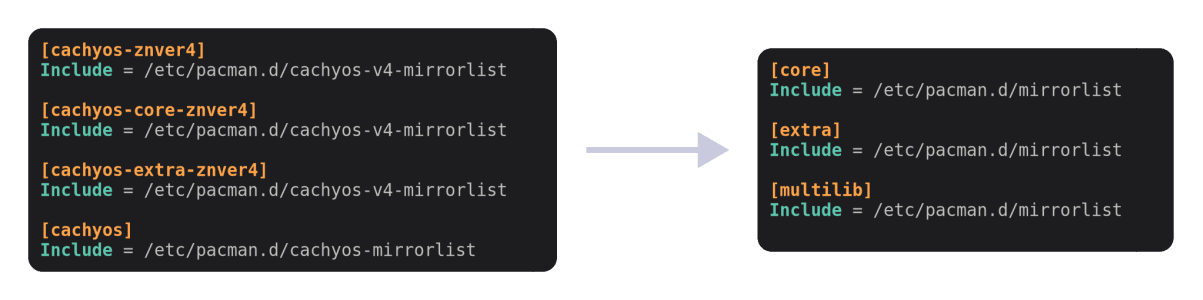
To some extent I can attest to the fact that there isn’t much more to it than this. In fact, I’ve done the opposite: I’ve configured my Arch system to use the CachyOS repositories, and it was a simple and straightforward process, fully sanctioned and accounted for by the CachyOS project and further simplified by the excellent entry in the their Wiki.
EndeavourOS

EndeavourOS is very similar to CachyOS in principle, but more conservative. It uses the same exact repositories as Arch, with I believe an additional one for branding and other small tools.
This means you won’t get the performance benefits of CachyOS, but otherwise the experience will be pretty much exactly the same: a preconfigured, polished and ready to go Arch distro.
The installer is the same CachyOS uses, so there should be no big difference on that front either, and EndeavourOS also offers a similar number of customization options during the initial setup.
EndeavourOS is great if you want something simple, that stays very close to traditional Arch Linux, or if your hardware is not new enough to make use of the optimizations CachyOS provides (older than Intel Haswell or AMD Excavator).
A note on why NOT Manjaro
Given its history I can not recommend Manjaro.
From a technical standpoint, they have a history of causing problems by shipping unstable or unreleased packages, or holding off some updates for too long, breaking packages installed from the AUR, among other things.
With all the options I already mentioned, and setting aside any technical mishaps here and there, I cannot see Manjaro as an interesting or compelling option for any use case. I have no personal issue with the Manjaro project in particular, nor the people that run it. This is a technical preference and since this article is about my opinions on things anyway, I think it’s worth mentioning.
Some tips on daily usage
In this section I want to cover some suggestions, regardless of which distribution you choose, for a smooth Linux experience.
Make sure you use Wayland
In Linux there are two main display protocols. You don’t need to know what a display protocol is, but it’s a good idea to get a general understanding anyway.
- X11 (sometimes called Xorg, after its most popular implementation) is the legacy display protocol that’s been in use on UNIX systems since the ’80s and on Linux systems up until today
- Old and clunky
- Insecure by design, allows any application to behave like a keylogger or grab the content of the screen with no restrictions
- New display features such as Variable Refresh Rate (VRR), HDR and display scaling are unsupported or barely supported with caveats
- Can suffer from tearing if not configured properly
- Most desktop environments are dropping support for it
- Frustratingly, technically more widely supported since it’s been around forever
- Wayland is the new display protocol, developed by the same people that used to develop Xorg
- Wide adoption is only fairly recent (as of the last couple years or so)
- Feature availability depends on the specific desktop environment
- Secure by design, disallowing keylogger behavior (but this causes some annoyances, like applications being unable to set their own global key bindings) and unrestricted screen recording
- Good support for VRR, HDR and display scaling
- No tearing by default
- It seems like some people want tearing. I think it’s something to do with lower input latency. Anyway you can enable it on some desktops like KDE Plasma if desired
- New display features will get support on Wayland first
To summarize, Wayland is the current recommended option for the vast majority of use cases, since it supports all modern features. Most desktop environments and application toolkits are slowly dropping support for X11 in favor of Wayland, so if nothing else it’s a good idea to use it to future proof your system.
The choice of your display server is tightly bound to the choice of desktop environment you make.
Desktop Environment choice
My recommendation of desktop environments for new users boils down to these two options:
- KDE Plasma
- GNOME
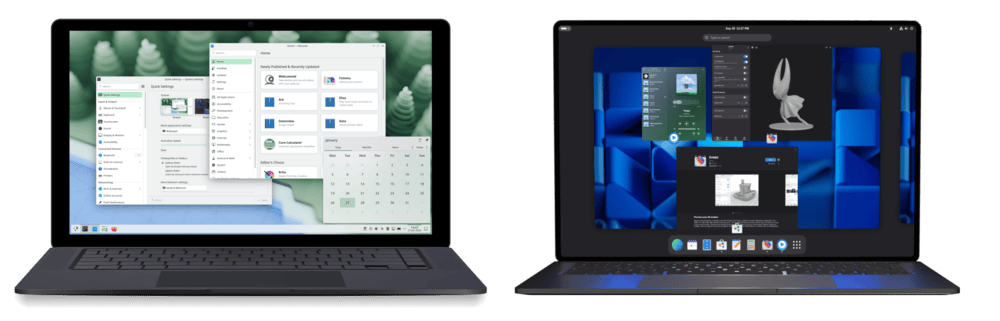
KDE Plasma is a stable desktop that offers many advanced features in a fairly easy to use package. Its default layout is also very familiar if you’re coming from Windows, but can easily be adapted for whatever workflow you prefer.
On the other hand, if you’re looking for a little paradigm shift in how you use your computer, you might be interested in GNOME. At first glance it looks a bit more similar to macOS, but don’t let that fool you, because it’s a very different way to interact with your desktop and applications. It lacks some more advanced customization options that KDE Plasma offers and overall it’s less adaptable.
Ultimately, each desktop has its pros and cons, but at the end of the day they are very comparable feature-wise, and your choice will depend on your personal preference. My own choice here is GNOME, but if you’re unsure, I recommend KDE Plasma as an option that is more suited for general usage (and so does Valve, since that’s the desktop that ships with SteamOS).
I made this table of some of the desktop environments that are out there, with a small description and the reasons behind my recommendation.
| Desktop Environment | Recommended for new users | X11 Support | Wayland Support | Description |
|---|---|---|---|---|
| KDE Plasma | ✅ Yes | ⚠️ Yes (but will be dropped soon) | ✅ Yes | Familiar, very customizable, a bit advanced but has a lot of functionality. SteamOS ships with KDE Plasma |
| GNOME | ✅ Yes | ❌ No | ✅ Yes | Unique, simple and straight to the point. Lacks some features compared to KDE Plasma, offers an opinionated and streamlined experience |
| Cinnamon | ⚠️ Maybe, lack of Wayland support makes this hard to recommend | ✅ Yes | ❌ No (work in progress) | The desktop that ships with Linux Mint. Familiar, very easy to use, but lacks more modern functionality |
| XFCE | ❌ No, lack of Wayland support, a bit too barebones for regular users | ✅ Yes | ❌ No (work in progress) | Old reliable, it’s quite stable but may look a bit outdated, and lacks modern amenities |
| COSMIC | ❌ No, still immature | ❌ No | ✅ Yes | Cool features in a simple and fairly customizable package, promising but very new and still not polished enough for general usage (see Linus’s weird issue with Steam) |
| Hyprland | ❌ No, too advanced | ❌ No | ✅ Yes | Cool animations, excellent tiling system, extremely customizable since you build it from the ground up via configuration files, does not provide a usable out-of-the-box experience and requires a lot of tinkering |
| Niri | ❌ No, too advanced | ❌ No | ✅ Yes | Novel concept based on an infinite scrolling horizontal surface, combined with tiling, extremely customizable since you build it from the ground up via configuration files, does not provide a usable out-of-the-box experience and requires a lot of tinkering |
Installing apps
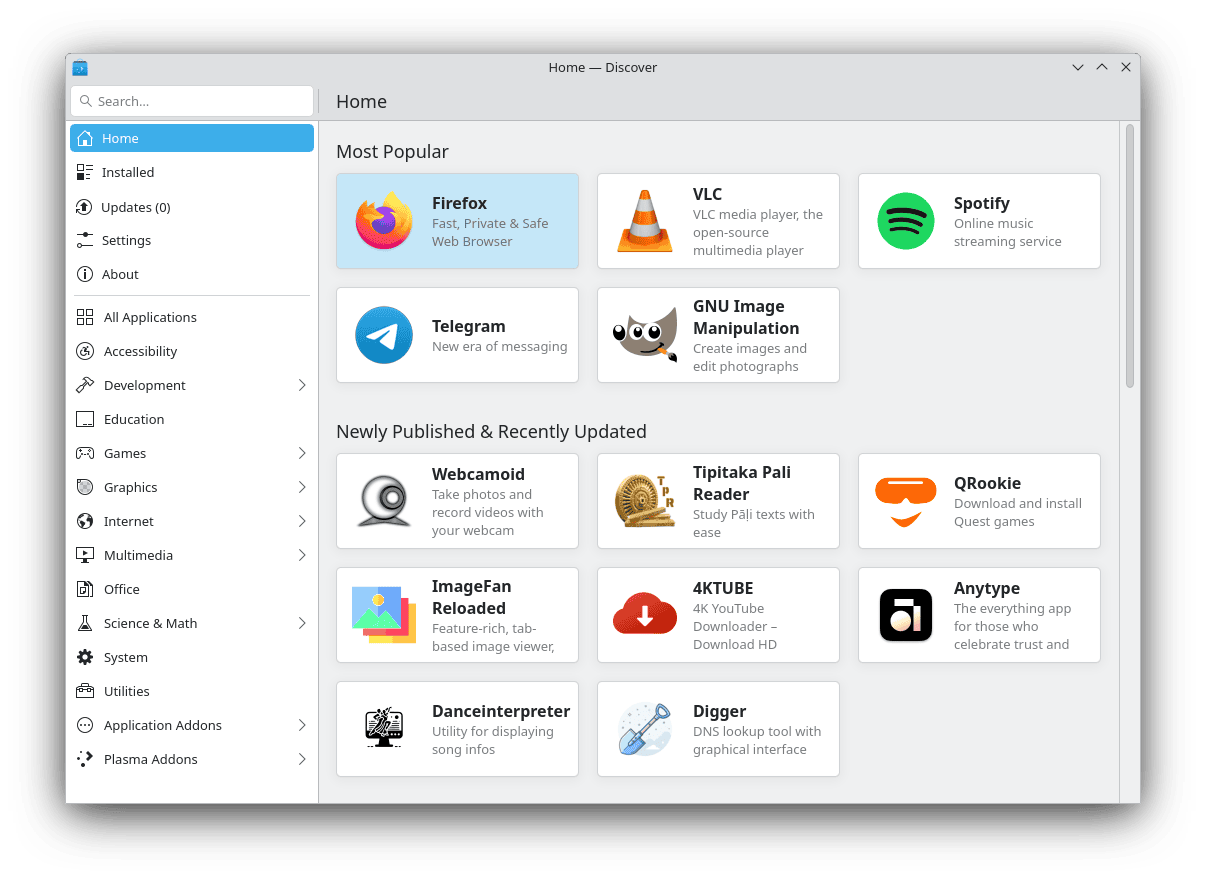
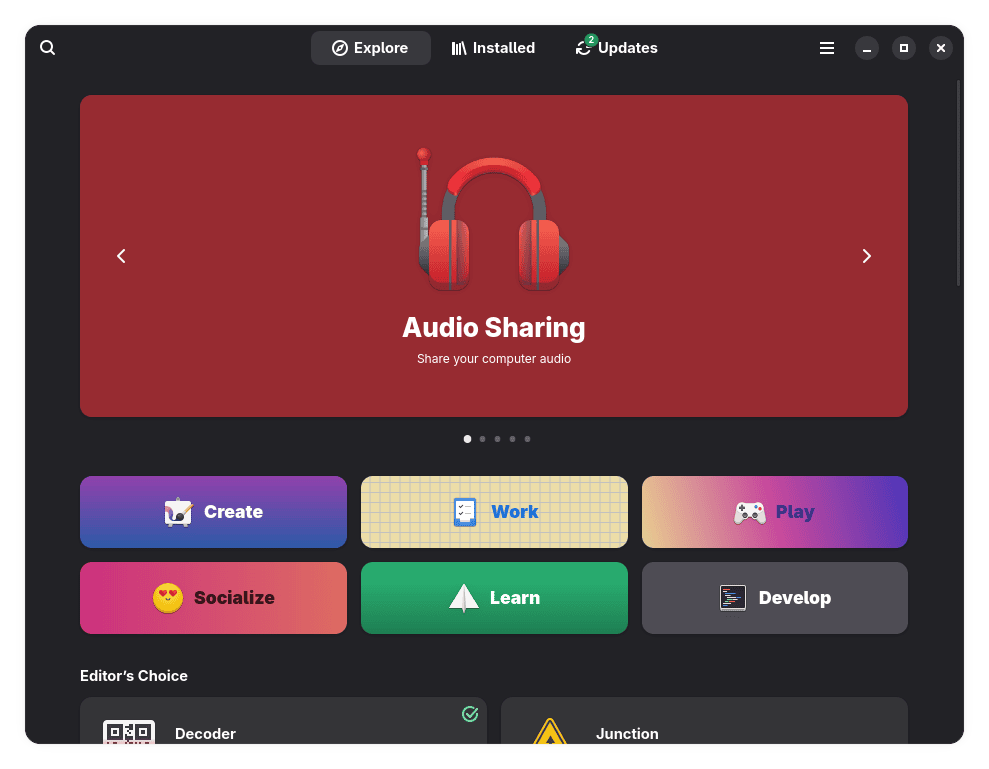
I strongly suggest you install most applications (except Steam) from Flathub. Depending on the distribution you choose, you’ll find one of these “App Store” like frontends for installing apps from Flathub:
| Discover | Bazaar | GNOME Software |
|---|---|---|
 |
 |
 |
Flatpak is a universal packaging format, meaning you can install Flatpak apps on virtually any Linux distro.
It also runs applications inside of a sandboxed environment, which provides some security benefits (random applications usually aren’t able to invasively access your system) but also some headaches since you might want some applications to be able to break out of the sandbox.
Fortunately it’s very easy to manage the permissions of your Flatpak apps using Flatseal.
Random commands from the internet

"UNIX Magic" poster, created by Gary Overacre, published by UniTech Software. Image from Unix Magic Poster Reference Tracker
It’s very common, particularly when searching how to fix various miscellaneous problems or installing obscure pieces of software, to find random commands in forum threads or blog posts.
Most people just blindly copy & paste them in their terminal, without so much as reading them. Please, do not do this.
Do not run random terminal commands you don’t understand, for a variety of reasons:
- If you don’t understand what they do, you effectively have no idea if they apply to your distribution, or to your particular problem
- Even if you read that a certain command is specifically written for your distribution, and while technically it might be the case, there’s a high likelyhood that it’s old and not up to date and therefore useless at best and actively harmful at worst
- It might be malicious, you might install malware without even realizing it
- Even if not malicious, you could break your system beyond repair, forcing you to reinstall (this is less likely on immutable distros, like the ones based on Universal Blue)
- In the remote chance that it actually works, you don’t know why it worked
This is a very, very bad habit of the Linux community and something we need to get rid of. The reason we do it is trivial really: it’s easier to say “copy this and paste it in your terminal” than to explain your way through a graphical program, or to explain what the command does.
It gets even worse when these commands start using fancy UNIX tooling like sed, grep, awk and tee. What you get on the other end is some fabulous UNIX Magic soup. Truly delicious if you understand it, but to a novice it’s just a mess of magical incantations. Besides, someone who is not a programmer shouldn’t necessarily have to know the intricacies of the shell to enjoy using Linux properly.
And this concludes the article, it’s long and verbose but my hope is that it gives you all the information you might need to get started on your Linux adventure without surprises.
All of these opinions are my own, and I’m sure someone will disagree with me, but that’s fine.
This is the culmination of a lifetime of using Linux on the desktop and beyond, and the result of all the lessons that I’ve learned along the way.